Showing posts with label CRM 2016. Show all posts

Friday, 12 January 2018

How to get security privileges in excel format in MS CRM

How to get security privileges in excel format in MS CRM using sql

Ms CRM sql RolePrivileges  table

Sometimes we need to get what all privileges a security role have, quickly without going into CRM standard security roles and find out.
Or if we want to keep the copy of privileges to different security roles as a reference to be used at some point of time in future, we have following sql query running which in sql server will give you list of name of security role, entity name with access level and security level:

////////////////////////////////////////////////////////////////////////////////////////////////////////////////////////////////////////////////////////////////////////////////////////////////////////

SELECT DISTINCT FilteredRole.name, EntityView.PhysicalName AS [Entity Name], CASE Privilege.AccessRight WHEN 1 THEN 'READ' WHEN 2 THEN 'WRITE' WHEN 4 THEN 'APPEND' WHEN 16 THEN 'APPENDTO' WHEN 32 THEN 'CREATE' WHEN 65536 THEN 'DELETE' WHEN 262144 THEN 'SHARE' WHEN 524288 THEN 'ASSIGN' END AS [Access Level], CASE PrivilegeDepthMask WHEN 1 THEN 'User' WHEN 2 THEN 'Business Unit' WHEN 4 THEN 'Parent: Child Business Unit' WHEN 8 THEN 'Organisation' END AS [Security Level] FROM RolePrivileges INNER JOIN FilteredRole ON RolePrivileges.RoleId = FilteredRole.roleid INNER JOIN PrivilegeObjectTypeCodes ON RolePrivileges.PrivilegeId = PrivilegeObjectTypeCodes.PrivilegeId INNER JOIN Privilege ON RolePrivileges.PrivilegeId = Privilege.PrivilegeId INNER JOIN EntityView ON EntityView.ObjectTypeCode = PrivilegeObjectTypeCodes.ObjectTypeCode ORDER BY FilteredRole.name, [Entity Name]


////////////////////////////////////////////////////////////////////////////////////////////////////////////////////////////////////////////////////////////////////////////////////////////////////////
Hope the results are helpful..!! :)

Happy CRMing..!!


How to find workflows running on the user context in MS CRM

How to find workflows running on the user context in MS CRM using sql

Sql query to get all workflows which are running on user's context, workflowbase table in ms crm

Recently i needed to find out all the workflows which are running in the context of  the user who made changes to the record. To quickly find out the same we need to query workflowbase
 table in crm db.

Below is the query.

/////////////////////////////////////////////////////////////////////////////////////////////////////////////////////////////////////////////////////////////////////////

Select 
distinct(W.name)
 from workflowbase as W
join SystemUser  as S
on W.OwnerId=S.SystemUserId
where S.FullName = 'CRM Admin'
and W.IsCrmUIWorkflow=1 --
and W.RunAs=1 --1 the user who made changes to the record 0-owner of the workflow
and W.ParentWorkflowId is   null --For workflow header rows only
and mode=0 --for real time workflow only 0- real time 1-background
and w.Category=0 --Category 2- Business rule and 0 is workflow
order by W.name

/////////////////////////////////////////////////////////////////////////////////////////////////////////////////////////////////////////////////////////////////////////

Happy CRMing

Sunday, 7 January 2018

Dynamics CRM How to view records shared with a user

Dynamics crm How to see records shared with current user

In Dynamics crm you can create different types of views but by oob views it's not possible to show the records shared with current user in any view.

For achieving we need to update the xml of a system view to make it show shared records.

Scenario: Let's say we have a view of lead named "my shared leads".

Following is the fetch xml of the view which can be downloaded from advanced find.

/////////////////////////////////////////////////////////////////////////////////////////////////////////////////////////////////////////////////
<fetch version="1.0" output-format="xml-platform" mapping="logical" distinct="false">
  <entity name="lead">
    <attribute name="fullname" />
    <attribute name="companyname" />
    <attribute name="telephone1" />
    <attribute name="leadid" />
    <order attribute="fullname" descending="false" />
  </entity>
</fetch>
/////////////////////////////////////////////////////////////////////////////////////////////////////////////////////////////////////////////////

Now to make it show shred records we have to update it's fetch xml with following xml:
/////////////////////////////////////////////////////////////////////////////////////////////////////////////////////////////////////////////////
<link-entity name='principalobjectaccess' to='leadid' from='objectid' link-type='inner' alias='share'>
 <filter type='and'>
 <condition attribute='principalid' operator='eq-userid' />
 </filter>
</link-entity>
/////////////////////////////////////////////////////////////////////////////////////////////////////////////////////////////////////////////////

principalobjectaccess table store shared records.
to: primary field of the entity for which the view is (leadid in our case)
condition: principalid
Operator: eq-userid means princinpal user should be equal to current user.

Updated XML will look like

/////////////////////////////////////////////////////////////////////////////////////////////////////////////////////////////////////////////////
<fetch version="1.0" output-format="xml-platform" mapping="logical" distinct="false">
  <entity name="lead">
    <attribute name="fullname" />
    <attribute name="companyname" />
    <attribute name="telephone1" />
    <attribute name="leadid" />
    <order attribute="fullname" descending="false" />
<link-entity name='principalobjectaccess' to='leadid' from='objectid' link-type='inner' alias='share'>
 <filter type='and'>
 <condition attribute='principalid' operator='eq-userid' />
 </filter>
</link-entity>
  </entity>
</fetch>
/////////////////////////////////////////////////////////////////////////////////////////////////////////////////////////////////////////////////

Now get the guid of view from database or by querying as follows

/////////////////////////////////////////////////////////////////////////////////////////////////////////////////////////////////////////////////
   public Guid  GetSavedQueryId(IOrganizationService service,String viewname)
        {
            Guid result = Guid.Empty;
            QueryExpression q = new QueryExpression("savedquery");
            q.Criteria.AddCondition("name", ConditionOperator.Equal, viewname);
            EntityCollection en = service.RetrieveMultiple(q);
            if (en.Entities.Count > 0)
                result= en.Entities[0].Id;

            return result;
            
        }
/////////////////////////////////////////////////////////////////////////////////////////////////////////////////////////////////////////////////

Once you got the Guid of the view you can update it with the help of following code:
/////////////////////////////////////////////////////////////////////////////////////////////////////////////////////////////////////////////////
public void UpdateSavedQuery(IOrganizationService service,Guid viewid)
 {
 Entity UpdateQuery = new Entity("savedquery");
 UpdateQuery.Id = viewid;  //new Guid("12bc926f-26c0-e111-a4f9-00155d1c5b01"); //Guid of the view to be updated
 UpdateQuery["fetchxml"] = @" <fetch version='1.0' output-format='xml-platform' mapping='logical' distinct='false'>
  <entity name='lead'>
<attribute name='fullname' />
<attribute name='companyname' />
<attribute name='telephone1' />
<attribute name='leadid' />
<order attribute='fullname' descending='false' />
<link-entity name='principalobjectaccess' to='leadid' from='objectid' link-type='inner' alias='share'>
<filter type='and'>
<condition attribute='principalid' operator='eq-userid' />
</filter>
</link-entity>
  </entity>
</fetch>";

service.Update(UpdateQuery);
 }
/////////////////////////////////////////////////////////////////////////////////////////////////////////////////////////////////////////////////
Don't forget to replace " in fetch xml with ' .

Once you execute above code, you'll be able to see shared record in your view.

Happy CRM


Sunday, 27 August 2017

How to send data in excel along with an email in CRM using C#

How to send data in excel along with an email in CRM using C#

In the previous post i discussed how can we convert a datatable into a csv file using c#.

Often in Dynamics crm we face the requirement that customer wants some data in excel attached along with the email on some regular interval or so. To do so, the first option looks like we paste the result into email body and send it as email to customer. But that doesn't looks good as user can't do much with email body what he can do if he receive that data in an excel sheet. What if we can send him data into excel attached with the email?? But the question arise, do we need to have office on the server running code?? The latest answer is: NO. Because you can create a csv file in c# and attach it along with a crm email and send it to concerned person.

For ex: Customer wants that he should get an email daily of having the number of cases created on the same day as per their origin.

Like:
Originated from    Count
Phone call             200
Email                    120
Chat                       80
Web                       400

So to send such kind of data into excel what we can do is, we can extract the data into a datatable using some C# code from their crm application and convert the datatable into CSV as explained in previous post.   Once you get the comma separated value as result from datatable, you can then create an email record into crm and pass the guid of email record along with csv result.

Below function will attach the csv string in the form of a csv with that email which can be opened easily in excel.

/////////////////////////////////////////////////////////////////////////////////////////////////////////////////////////////////////////////////////////////////////////////////////
   //Function to  add csv message as attachment with the email record of passed guid
        public static void addAttachmenttoEmail(Guid emailguid, String message, IOrganizationService service)
        {
            Entity attachment = new Entity("activitymimeattachment");
            attachment["subject"] = "SampleCSV";
            string fileName = "Sample.csv";
            attachment["filename"] = fileName;
            byte[] fileStream = Encoding.ASCII.GetBytes(message);

            attachment["body"] = Convert.ToBase64String(fileStream);
            attachment["mimetype"] = "text/plain";
            attachment["attachmentnumber"] = 1;
            attachment["objectid"] = new EntityReference("email", emailguid);
            attachment["objecttypecode"] = "email";
            service.Create(attachment);
        }


/////////////////////////////////////////////////////////////////////////////////////////////////////////////////////////////////////////////////////////////////////////////////////

Don't forget the send that email with which we just attached the csv string.

Happy Learning...!!

Friday, 10 February 2017

How to pass configuration parameters in plugins in MS Dynamics CRM

How to pass configuration parameters in plugins in MS Dynamics CRM


Many times, we face a situation where we need to hard-code things in plugins which we know might get changed in future. 
For ex:
1. If we are sending emails from plugins, we might need to hard-code the name/guid of the sender queue, which in-face might be different for different instances.
2. When we are sending SMS' using plugin and have url of SMS vendor which we need to hit in order to send the SMS. We have to hard-code url in plugin code itself.
I'm sure there are many more scenario where we have to hard-code things which we wish we can keep configurable for future change scope.

In this post, we'll discuss how we can pass parameters to our plugin code and in what way so that it can be easily modified with minimum efforts.

I'm sure you have seen the below highlighted boxes while registering the step of a plugin:

So for what they are used?

These are used to pass configuration to plugins.

There are 2 ways of doing that:
1. Unsecure configuration
2. Secure Configuration

So what is the difference b.w these 2 types?

Below is the difference b/w these 2 types:-
Unsecure Config Secure Config
Readable by any CRM User Yes No
Moves Between Environments with Solutions Yes No
Available when Plugin is Registered for Outlook Offline Mode Yes No


So how do we pass it through any of the above method?

In this post we'll discuss how we can pass different type of parameters to plugin.

For demonstration, we'll pass 4 types of parameters to a plugin running on contact i.e.
1. String
2. Integer
3. Boolean
4. Guid
and will show that these are actually passed by updating all parameters into the description field.

I'm sure passing parameter is way more useful than storing it in the description..!!
You can use it as per your requirement.

We created a class named PluginConfiguration in our plugin having below code:-
///////////////////////////////////////////////////////////////////////////////////////////////////////////////////////////////////////////////////////////////////////////
using System;
using System.Collections.Generic;
using System.Linq;
using System.Text;
using System.Threading.Tasks;
using System.Xml;

namespace PluginConfigurationTest
{
    class PluginConfiguration
    {
        private static string GetValueNode(XmlDocument doc, string key)
        {
            XmlNode node = doc.SelectSingleNode(String.Format("Settings/setting[@name='{0}']", key));

            if (node != null)
            {
                return node.SelectSingleNode("value").InnerText;
            }
            return string.Empty;
        }

        public static Guid GetConfigDataGuid(XmlDocument doc, string label)
        {
            string tempString = GetValueNode(doc, label);

            if (tempString != string.Empty)
            {
                return new Guid(tempString);
            }
            return Guid.Empty;
        }

        public static bool GetConfigDataBool(XmlDocument doc, string label)
        {
            bool retVar;

            if (bool.TryParse(GetValueNode(doc, label), out retVar))
            {
                return retVar;
            }
            else
            {
                return false;
            }
        }
        public static int GetConfigDataInt(XmlDocument doc, string label)
        {
            int retVar;

            if (int.TryParse(GetValueNode(doc, label), out retVar))
            {
                return retVar;
            }
            else
            {
                return -1;
            }
        }

        public static string GetConfigDataString(XmlDocument doc, string label)
        {
            return GetValueNode(doc, label);
        }
    }
}

///////////////////////////////////////////////////////////////////////////////////////////////////////////////////////////////////////////////////////////////////////////
For demo purpose, we have set the step to fire on change of fax and extracted the passed parameters and stored them in the description of contact.

Below is the code of our plugin class file where we extracted the parameters from xml by parsing it with the help of PluginConfiguration:-
///////////////////////////////////////////////////////////////////////////////////////////////////////////////////////////////////////////////////////////////////////////
using System;
using Microsoft.Xrm.Sdk;
using System.Xml;

namespace PluginConfigurationTest
{
    public class ConfigTest : IPlugin
    {
        String  stringParam = String.Empty;
        int integetParam;
        bool boolParam;
        Guid guidParam = Guid.Empty;
        //Created a constructor to initialize the variable with passed parameters
        public ConfigTest(string unsecureString, string securedString)
        {
            try
            {
                XmlDocument doc = new XmlDocument();
                doc.LoadXml(unsecureString);
                stringParam= PluginConfiguration.GetConfigDataString(doc, "string");
                integetParam = PluginConfiguration.GetConfigDataInt(doc, "int");
                boolParam = PluginConfiguration.GetConfigDataBool(doc, "bool");
                guidParam = PluginConfiguration.GetConfigDataGuid(doc, "guid");

            }
            catch (Exception ex)
            {

                throw new Exception("Error " + ex.Message);
            }
        }
        public void Execute(IServiceProvider serviceProvide)
        {
            #region SetUp
            IPluginExecutionContext context = (IPluginExecutionContext)serviceProvide.GetService(typeof(IPluginExecutionContext));
            IOrganizationService service = ((IOrganizationServiceFactory)serviceProvide.GetService(typeof(IOrganizationServiceFactory))).CreateOrganizationService(context.UserId);
            #endregion
            if ((context.InputParameters.Contains("Target")) && (context.InputParameters["Target"] is Entity) & context.Depth < 3)
            {
                Entity entity = (Entity)context.InputParameters["Target"];
                if (entity.LogicalName != "contact")
                    return;
                try
                {
                    entity["description"] = "1." + stringParam + "\n2." + integetParam + "\n3." + boolParam + "\n4." + guidParam.ToString();
                    service.Update(entity);
                }
                catch (Exception ex)
                {
                    throw new Exception("Error " +ex.Message);
                }
            }
        }
    }
}

///////////////////////////////////////////////////////////////////////////////////////////////////////////////////////////////////////////////////////////////////////////


Below is the xml we created to be passed in plugin step:
///////////////////////////////////////////////////////////////////////////////////////////////////////////////////////////////////////////////////////////////////////////
 <Settings>
       <setting name="string">
           <value>Vishal Kumar</value>
       </setting>   
  <setting name="int">
           <value>23</value>
       </setting>   
   <setting name="bool">
           <value>true</value>
       </setting>   
   <setting name="guid">
           <value>6F6A7298-53EF-E611-8111-C4346BDC3C21</value>
       </setting>   
   </Settings>
///////////////////////////////////////////////////////////////////////////////////////////////////////////////////////////////////////////////////////////////////////////
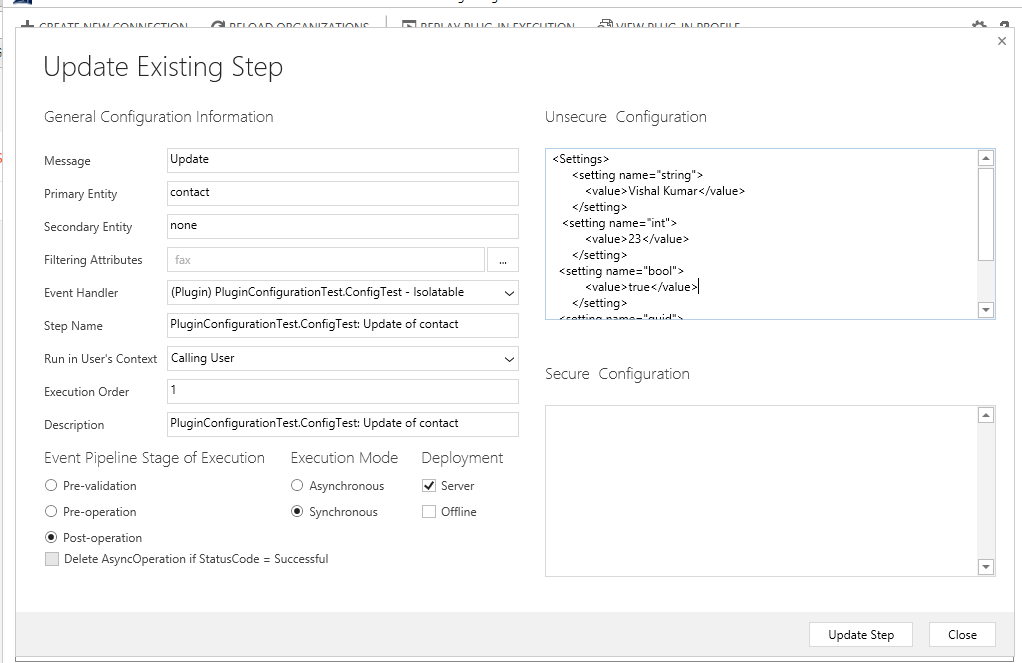
We need to put this xml to in unsecure configuration box and update the step to pass this to the plugni on this step.
Below is the plugin step for reference:-


Below is the  output of the plugin on the contact record:-
I hope the post was helpful.

You can utilize the feature to pass parameters to plugins and change those whenever needed.


Sunday, 11 December 2016

How to get case resolution information on case record when the case resolved in MS CRM

How to capture case resolution information on case record when the case resolved in MS CRM


Few days ago, a requirement came to me in which we have to store the resolution data filled in resolution dialog  while resolving the case.

When user click resolve button on a case, a dialog box appears as shown below in which user fills the resolution details:


This information is not stored over case entity but is stored in incident resolution entity which is a backend entity in CRM and is not available to directly interact through CRM screen.

Each time a case is resolved, a record in incient resolution entity is created having refrene to the case resolved.
(It is possible to have more than 1 reord for same case is incident resolution if case is resolved and reopened multiple time.)

At first i thought of writing some server side code on resolve of case, but the problem was that after case us resolved the case record get deactivated. That means we can't update the  record by any means, be it CRM screen or service udpate request.

So writing a server-side logic on resolution of case was out of scope.

After some digging, i found out that if we run a server-side logic on creation of record of incident resolution entity, the solution would work and it will update the case before it get freezed.

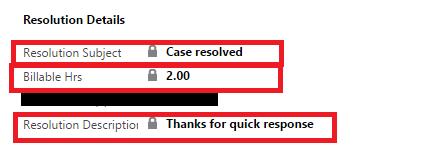
I write a plugin to get the details filled by user in resolution dialog box from the incident resolution record created.

I then updated this information on 3 custom fields on case form. The output of the solution on case form is as shown below image:


Below is the code snippet of the logic::

Plugin Step Details:
Message                :    Create
Primary Entity      :    IncidentResolution
Registered on        :    Post event

////////////////////////////////////////////////////////////////////////////////////////////////////////////////////////////////////////////////////////////////////////////////////////////////////////
public class TrackTimeonCase : IPlugin
    {
        public void Execute(IServiceProvider serviceProvider)
        {
            #region Setup
            IPluginExecutionContext context = (IPluginExecutionContext)serviceProvider.GetService(typeof(IPluginExecutionContext));
            IOrganizationService service = ((IOrganizationServiceFactory)serviceProvider.GetService(typeof(IOrganizationServiceFactory))).CreateOrganizationService(new Guid?(context.UserId));
            ITracingService tracing = (ITracingService)serviceProvider.GetService(typeof(ITracingService));
            #endregion
            tracing.Trace("0.0");
            Entity targetCase = new Entity("incident");
            if ((context.InputParameters.Contains("Target")) && (context.InputParameters["Target"] is Entity) & context.Depth < 3)
            {
                    Entity entity = (Entity)context.InputParameters["Target"];
                    if (entity.LogicalName != "incidentresolution")
                        return;
                    try
                    {
                        if (entity.Contains("incidentid"))
                        {
                                targetCase.Id = ((EntityReference)entity["incidentid"]).Id;
                                Entity ResolveCase = service.Retrieve("incident", targetCase.Id, new ColumnSet("new_billablemintotal"));
                                int timespent = entity.Contains("timespent") ? entity.GetAttributeValue<int>("timespent") : 0;
                                targetCase["new_resolutiondescription"] = entity.Contains("description") ? (entity["description"] != null ? entity["description"].ToString() : string.Empty) : string.Empty;
                                targetCase["new_resolutionsubject"] = entity.Contains("subject") ? entity["subject"].ToString() : string.Empty;
                                if (ResolveCase.Contains("new_billablemintotal"))
                                {
                                  timespent = timespent + ResolveCase.GetAttributeValue<int>("new_billablemintotal");
                                }

                                    targetCase["new_billablemintotal"] = timespent;
                                    targetCase["new_billablehrs"] = ((decimal)timespent / 60);
                                    service.Update(targetCase);
                           
                        }
                    }
                    catch (Exception ex)
                    {
                        throw new InvalidPluginExecutionException(ex.Message);
                    }
                }

            }
        }

////////////////////////////////////////////////////////////////////////////////////////////////////////////////////////////////////////////////////////////////////////////////////////////////////////

Hope this was helpful...!!!

Sunday, 13 November 2016

How to enable Feedback in Dynamics crm 2016

How to manage Feedback in Dynamics crm 2016

To improve customer satisfaction, tracking customer feedback for the products and services that your organization offers is very important. You can now add feedback or ratings to records for any entity that is enabled for feedback.
For example, if the Case entity is enabled for feedback, you can capture feedback on the support experience the customer received for the case. When several customers are rating a record, the ratings can be consolidated for each record through a custom rollup field. In a sales scenario, you can enable the Product entity for feedback to capture users' feedback on the products you sell.
Here, we;ll learn how to enable feedback for an entity and how to get the collaborated rating from multiple feedbacks of a record.
Important
This feature was introduced in CRM Online 2016 Update 1 and in CRM 2016 SP1 (on-premises).
We'll take case entity in our example and learn to enable entity and capturing average feedback rating from multiple feedbacks in case itself with the help of a roll-up field in below step by step procedure:
Step 1: Navigate to setting->Customization->Customize the system as shown in image below:

Step 2: Click on entity of your choice on which you want to enable feedback. In our case it's case entity. 
In Communication and collaboration check the feedback checkbox to enable feedback for case.
Note: Once enabled for an entity it can't be disabled again.


Step 3: Now save and publish the entity.

This is how feedback is simply enabled for an entity.

Let's now see how we can insert record in feedback of a case:

Step 1: Open the related records of case by clicking as below:

Step 2: A related feedback grid appears. Click on new feedback to add new feedback for this case as shown in below image:


Step 3: Create a new feedback record and set regarding field to the above case manually to attach the feedback to this case:

This  is how you can add a feedback record for a record.

If you have observed, in the above procedure we have to manually set  the regarding field to the case and this in not much convenient to navigate to feedback first and then add a new feedback.

To overcome this you can add a subgrid of feedback over case form itself so that user can directly add feedback from case record itself and there  isn't any need of setting regarding field separately as system itself create feedback record related to case:

Below is the step by step procedure of adding a subgrid on a form:

  1. Go to Settings > Customizations.
  2. Choose Customize the System.
  3. Under Components, expand Entities, and then expand the entity you've enabled for feedback.
  4. Click Forms.
  5. Open the form of type Main or Main - Interactive experience.
    The Main - Interactive experience form is used in the interactive service hub.
  6. Select the section you want to insert the subgrid in, and on the Insert tab, in the Control group, click Sub-Grid.
  7. In the Set Properties dialog box, fill in the name and label for the subgrid.
  8. In the Data Source section, select the information:
    • Records. Select Only Related Records.
    • Entity. Select Feedback (Regarding).
    • Default View. Select a default view for the list.
9. Click save and publish to make change effective.


You might want to get the average collaborated rating given by customers for a given case through feedback records on case record.
This can be easily done with the help of roll-up field.
Below is the step by step procedure to create a rollup field to calculate the average rating for a case:

Step 1:  Add a new field on case entity as shown in image below.
Datatype of field should be whole number and make it of type rollup and click edit to set an aggregation formula:

Step 2:  Set the properties as shown below:

Step 3: Save the field and place the field on the place of your choice in case form and publish the case form.

Step 4:  Let's say there are 3 feedback records for a case with ratings 3.4 and 5 as shown in below image:


Step 5:
Calculating average rating: 

This was how you can enable and configure feedback in your system for any entity.

Hope this post was helpful.

Keep following for more updates...!!

Monday, 7 November 2016

Server side business Rules in MS Dynamics crm 2015 and later

Make the Business Rule execute over server side in Dynamics CRM 2015 and later
In CRM 2015, there is a very important update which can be considered for replacing many workflows or plugins – Executing Business Rules from Server Side code.

When Business Rule feature was introduced in CRM 2013, it was capable of executing from client side alone and with the 2015 update, we now be able to execute business rule from server side as well- which is a great feature

Hope it would be useful...!

Sunday, 23 October 2016

Show-Hide Section on the Basis of Security Role of Current User Using Javascript in MS Dynamics CRM

Show-Hide Section on the Basis of Security Role of Current User Using Javascript in MS Dynamics CRM
Show Fields on the Basis of Security Role of Current User Using Javascript in MS Dynamics CRM

Sometimes, we face such situation where we want to show some specific section to users having a specific role only.

Scenario: Let's say on case form you want to show a "Details" section under "general" tab only to the user having "CSR Manager" role.

Now,it can be achieved using Javascript easily using below code:

////////////////////////////////////////////////////////////////////////////////////////////////////////////////////////////////////////////////////////////////////////////////
//Function Show-Hide a section based on a particular Role
function ShowHideSectionAccordingToRole()
{

if(CheckCurrentUserRole("CSR Manager"))
{
//Show the section
ToggleSection("general","Details",true);
}
else 
{
//Hide the section
ToggleSection("general","Details",false);
}
}

//Function to Show-Hide a section in Specific Tab
//Parameters
//TabName - Name of the Tab in Which the Section Exist
//SectionName - Name of the Section you want to Show-Hide
//Flag - true to Show and false to hide section
function ToggleSection(TabName, SectionName, Flag)
{       
    Xrm.Page.ui.tabs.get(TabName).sections.get(SectionName).setVisible(Flag);
}


//Check login User has role passed through Parameter
//Parameter
//IsRole - Name of the Role you want current user to check for
//Return Type - Boolean, True if User have that Role ,False if user doesn't have that Role
function CheckCurrentUserRole(IsRole) {
    var currentUserRoles = Xrm.Page.context.getUserRoles();
    for (var i = 0; i < currentUserRoles.length; i++) 
{
         var userRoleId = currentUserRoles[i];
         var userRoleName = GetRoleName(userRoleId);
         if (userRoleName == IsRole) 
   return true;
    }
    return false;
}

//Get Role-name based on RoleId
function GetRoleName(roleId) {
var serverUrl = Xrm.Page.context.getClientUrl();
var odataSelect = serverUrl + "/XRMServices/2011/OrganizationData.svc" + "/" + "RoleSet?$filter=RoleId eq guid'" + roleId + "'";
    var roleName = null;
    $.ajax(
        {
            type: "GET",
            async: false,
            contentType: "application/json; charset=utf-8",
            datatype: "json",
            url: odataSelect,
            beforeSend: function (XMLHttpRequest) { XMLHttpRequest.setRequestHeader("Accept", "application/json"); },
            success: function (data, textStatus, XmlHttpRequest) {
                roleName = data.d.results[0].Name;
            },
            error: function (XmlHttpRequest, textStatus, errorThrown) { alert('OData Select Failed: ' + textStatus + errorThrown + odataSelect); }
        }
    );
    return roleName;
}


////////////////////////////////////////////////////////////////////////////////////////////////////////////////////////////////////////////////////////////////////////////////


Show Fields on the Basis of Security Role of Current User Using Javascript in MS Dynamics CRM

If you want to show/Hide or Lock/Unlock specific field instead of a whole section you can just replace the "ShowHideSectionAccordingToRole" function with the below function :

////////////////////////////////////////////////////////////////////////////////////////////////////////////////////////////////////////////////////////////////////////////////
function ShowHideFieldAccordingToRole()
{

if(CheckCurrentUserRole("CSR Manager"))
{
//Show the Field
Xrm.Page.ui.controls.get("FieldName").setVisible(true);
               //To UnLock the field
              // Xrm.Page.getControl("FieldName").setDisabled(false); 
}
else 
{
//Hide the Field
Xrm.Page.ui.controls.get("FieldName").setVisible(false);
               //To lockLock the field
              // Xrm.Page.getControl("FieldName").setDisabled(true); 
}
}
////////////////////////////////////////////////////////////////////////////////////////////////////////////////////////////////////////////////////////////////////////////////

Some may argue that why would we use javascript to show/hide field when we have field security profiles.
I agree we have field security profiles which have much more feature to control over a field but here Javascript  is also an easy way to handle this.

I hope it would be helpful. 
Comments are highly appreciated.

Happy CRM...!!!