Showing posts with label C#. Show all posts

Tuesday, 16 January 2018

How to check the status of windows service using c#

C# code to check status of a windows service


Below is the C# code which return the status of a windows service running on a machine/server on passing correct name.

One use case of it is that if we want to monitor some specific services which are critical to operation, we can schedule our application to check the status of the specific service/services and if it's ha stopped, we can do certain action like sending an email to concern people so that corrective action can be taken.


Include using System.ServiceProcess; reference in your application.

////////////////////////////////////////////////////////////////////////////////////////////////////////////////////////////////////////////////////////////////////////////

   public static String GetWindowsServiceStatus(String SERVICENAME)
        {

            ServiceController sc = new ServiceController(SERVICENAME);

            switch (sc.Status)
            {
                case ServiceControllerStatus.Running:
                    return "Running";
                case ServiceControllerStatus.Stopped:
                    return "Stopped";
                case ServiceControllerStatus.Paused:
                    return "Paused";
                case ServiceControllerStatus.StopPending:
                    return "Stopping";
                case ServiceControllerStatus.StartPending:
                    return "Starting";
                default:
                    return "Status Changing";
            }
        }


////////////////////////////////////////////////////////////////////////////////////////////////////////////////////////////////////////////////////////////////////////////

Below is the sample test result:


Hope it would be helpful..!!

Sunday, 7 January 2018

Dynamics CRM How to view records shared with a user

Dynamics crm How to see records shared with current user

In Dynamics crm you can create different types of views but by oob views it's not possible to show the records shared with current user in any view.

For achieving we need to update the xml of a system view to make it show shared records.

Scenario: Let's say we have a view of lead named "my shared leads".

Following is the fetch xml of the view which can be downloaded from advanced find.

/////////////////////////////////////////////////////////////////////////////////////////////////////////////////////////////////////////////////
<fetch version="1.0" output-format="xml-platform" mapping="logical" distinct="false">
  <entity name="lead">
    <attribute name="fullname" />
    <attribute name="companyname" />
    <attribute name="telephone1" />
    <attribute name="leadid" />
    <order attribute="fullname" descending="false" />
  </entity>
</fetch>
/////////////////////////////////////////////////////////////////////////////////////////////////////////////////////////////////////////////////

Now to make it show shred records we have to update it's fetch xml with following xml:
/////////////////////////////////////////////////////////////////////////////////////////////////////////////////////////////////////////////////
<link-entity name='principalobjectaccess' to='leadid' from='objectid' link-type='inner' alias='share'>
 <filter type='and'>
 <condition attribute='principalid' operator='eq-userid' />
 </filter>
</link-entity>
/////////////////////////////////////////////////////////////////////////////////////////////////////////////////////////////////////////////////

principalobjectaccess table store shared records.
to: primary field of the entity for which the view is (leadid in our case)
condition: principalid
Operator: eq-userid means princinpal user should be equal to current user.

Updated XML will look like

/////////////////////////////////////////////////////////////////////////////////////////////////////////////////////////////////////////////////
<fetch version="1.0" output-format="xml-platform" mapping="logical" distinct="false">
  <entity name="lead">
    <attribute name="fullname" />
    <attribute name="companyname" />
    <attribute name="telephone1" />
    <attribute name="leadid" />
    <order attribute="fullname" descending="false" />
<link-entity name='principalobjectaccess' to='leadid' from='objectid' link-type='inner' alias='share'>
 <filter type='and'>
 <condition attribute='principalid' operator='eq-userid' />
 </filter>
</link-entity>
  </entity>
</fetch>
/////////////////////////////////////////////////////////////////////////////////////////////////////////////////////////////////////////////////

Now get the guid of view from database or by querying as follows

/////////////////////////////////////////////////////////////////////////////////////////////////////////////////////////////////////////////////
   public Guid  GetSavedQueryId(IOrganizationService service,String viewname)
        {
            Guid result = Guid.Empty;
            QueryExpression q = new QueryExpression("savedquery");
            q.Criteria.AddCondition("name", ConditionOperator.Equal, viewname);
            EntityCollection en = service.RetrieveMultiple(q);
            if (en.Entities.Count > 0)
                result= en.Entities[0].Id;

            return result;
            
        }
/////////////////////////////////////////////////////////////////////////////////////////////////////////////////////////////////////////////////

Once you got the Guid of the view you can update it with the help of following code:
/////////////////////////////////////////////////////////////////////////////////////////////////////////////////////////////////////////////////
public void UpdateSavedQuery(IOrganizationService service,Guid viewid)
 {
 Entity UpdateQuery = new Entity("savedquery");
 UpdateQuery.Id = viewid;  //new Guid("12bc926f-26c0-e111-a4f9-00155d1c5b01"); //Guid of the view to be updated
 UpdateQuery["fetchxml"] = @" <fetch version='1.0' output-format='xml-platform' mapping='logical' distinct='false'>
  <entity name='lead'>
<attribute name='fullname' />
<attribute name='companyname' />
<attribute name='telephone1' />
<attribute name='leadid' />
<order attribute='fullname' descending='false' />
<link-entity name='principalobjectaccess' to='leadid' from='objectid' link-type='inner' alias='share'>
<filter type='and'>
<condition attribute='principalid' operator='eq-userid' />
</filter>
</link-entity>
  </entity>
</fetch>";

service.Update(UpdateQuery);
 }
/////////////////////////////////////////////////////////////////////////////////////////////////////////////////////////////////////////////////
Don't forget to replace " in fetch xml with ' .

Once you execute above code, you'll be able to see shared record in your view.

Happy CRM


Sunday, 27 August 2017

How to send data in excel along with an email in CRM using C#

How to send data in excel along with an email in CRM using C#

In the previous post i discussed how can we convert a datatable into a csv file using c#.

Often in Dynamics crm we face the requirement that customer wants some data in excel attached along with the email on some regular interval or so. To do so, the first option looks like we paste the result into email body and send it as email to customer. But that doesn't looks good as user can't do much with email body what he can do if he receive that data in an excel sheet. What if we can send him data into excel attached with the email?? But the question arise, do we need to have office on the server running code?? The latest answer is: NO. Because you can create a csv file in c# and attach it along with a crm email and send it to concerned person.

For ex: Customer wants that he should get an email daily of having the number of cases created on the same day as per their origin.

Like:
Originated from    Count
Phone call             200
Email                    120
Chat                       80
Web                       400

So to send such kind of data into excel what we can do is, we can extract the data into a datatable using some C# code from their crm application and convert the datatable into CSV as explained in previous post.   Once you get the comma separated value as result from datatable, you can then create an email record into crm and pass the guid of email record along with csv result.

Below function will attach the csv string in the form of a csv with that email which can be opened easily in excel.

/////////////////////////////////////////////////////////////////////////////////////////////////////////////////////////////////////////////////////////////////////////////////////
   //Function to  add csv message as attachment with the email record of passed guid
        public static void addAttachmenttoEmail(Guid emailguid, String message, IOrganizationService service)
        {
            Entity attachment = new Entity("activitymimeattachment");
            attachment["subject"] = "SampleCSV";
            string fileName = "Sample.csv";
            attachment["filename"] = fileName;
            byte[] fileStream = Encoding.ASCII.GetBytes(message);

            attachment["body"] = Convert.ToBase64String(fileStream);
            attachment["mimetype"] = "text/plain";
            attachment["attachmentnumber"] = 1;
            attachment["objectid"] = new EntityReference("email", emailguid);
            attachment["objecttypecode"] = "email";
            service.Create(attachment);
        }


/////////////////////////////////////////////////////////////////////////////////////////////////////////////////////////////////////////////////////////////////////////////////////

Don't forget the send that email with which we just attached the csv string.

Happy Learning...!!

Saturday, 26 August 2017

How to convert datatable into csv/excel file in C#

How to convert datatable into csv/excel file in C#


Often we require to convert the datatable in context in a c# code into a plain text csv (comma separated values) or a excel readable file. Here i have created a c#  console application code snipped to convert a sample datatable into csv notepad file or csv excel readable file. You can utilize it where you need it.
Hope it would be helpful:

//////////////////////////////////////////////////////////////////////////////////////////////////////////////////////////////////////////////////////////////////////////////////

using System;
using System.Text;
using System.Data;
using System.IO;

namespace ConsoleApplication1
{
    class Program
    {
        public  static void Main(string[] args)
        {

            //Create a sample datatable
            DataTable dt=new DataTable();
            dt.Columns.Add("FisrtName", typeof(string));
            dt.Columns.Add("LastName", typeof(string));

            DataRow dr1 = dt.NewRow();
            dr1["FisrtName"]="Vishal";
            dr1["LastName"]="Grade";
            dt.Rows.Add(dr1);

            DataRow dr2 = dt.NewRow();
            dr2["FisrtName"] = "Tony";
            dr2["LastName"] = "Stark";
            dt.Rows.Add(dr2);

            String result = DataTableToCSV(dt, ',');

            //Wrire the result comma seprated string to a csv file which can be opened in excel
            System.IO.File.WriteAllText(@"D:\\result.csv", result);

            //Wrire the result comma seprated string to a csv text file 
            System.IO.File.WriteAllText(@"D:\\result.txt", result);
            

            Console.Write(result);
            
        }
        //Function to convert datatble content into comma separated string
        public static string DataTableToCSV(DataTable datatable, char seperator)
        {
            StringBuilder sb = new StringBuilder();
            for (int i = 0; i < datatable.Columns.Count; i++)
            {
                sb.Append(datatable.Columns[i]);
                if (i < datatable.Columns.Count - 1)
                    sb.Append(seperator);
            }
            sb.AppendLine();
            foreach (DataRow dr in datatable.Rows)
            {
                for (int i = 0; i < datatable.Columns.Count; i++)
                {
                    sb.Append(dr[i].ToString());

                    if (i < datatable.Columns.Count - 1)
                        sb.Append(seperator);
                }
                sb.AppendLine();
            }
            return sb.ToString();
        }
    }
}


//////////////////////////////////////////////////////////////////////////////////////////////////////////////////////////////////////////////////////////////////////////////////

Happy learning...!!

Friday, 10 February 2017

How to pass configuration parameters in plugins in MS Dynamics CRM

How to pass configuration parameters in plugins in MS Dynamics CRM


Many times, we face a situation where we need to hard-code things in plugins which we know might get changed in future. 
For ex:
1. If we are sending emails from plugins, we might need to hard-code the name/guid of the sender queue, which in-face might be different for different instances.
2. When we are sending SMS' using plugin and have url of SMS vendor which we need to hit in order to send the SMS. We have to hard-code url in plugin code itself.
I'm sure there are many more scenario where we have to hard-code things which we wish we can keep configurable for future change scope.

In this post, we'll discuss how we can pass parameters to our plugin code and in what way so that it can be easily modified with minimum efforts.

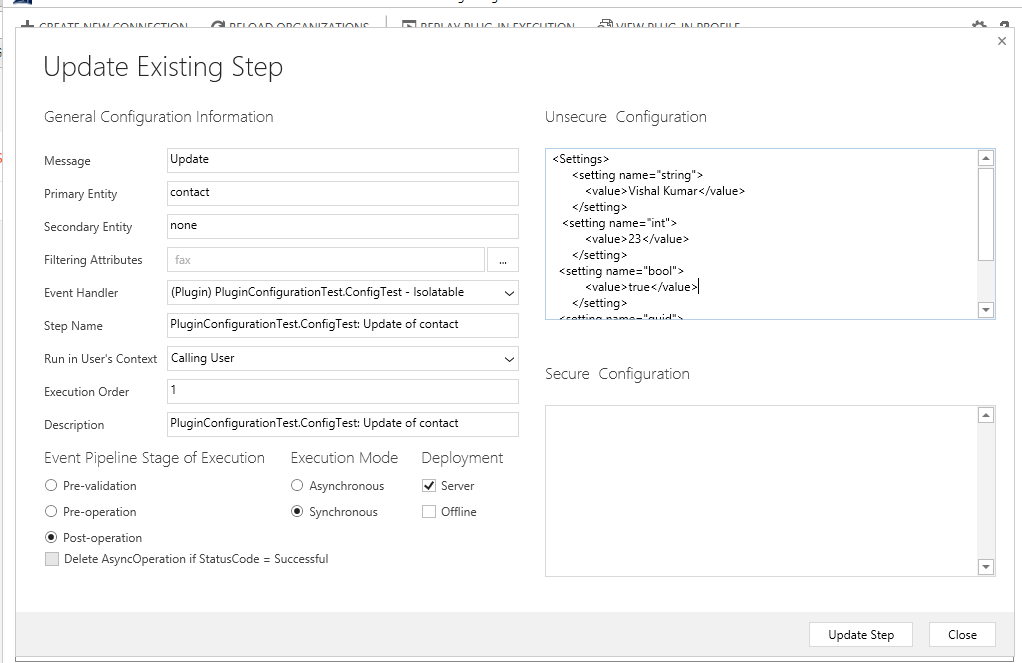
I'm sure you have seen the below highlighted boxes while registering the step of a plugin:

So for what they are used?

These are used to pass configuration to plugins.

There are 2 ways of doing that:
1. Unsecure configuration
2. Secure Configuration

So what is the difference b.w these 2 types?

Below is the difference b/w these 2 types:-
Unsecure Config Secure Config
Readable by any CRM User Yes No
Moves Between Environments with Solutions Yes No
Available when Plugin is Registered for Outlook Offline Mode Yes No


So how do we pass it through any of the above method?

In this post we'll discuss how we can pass different type of parameters to plugin.

For demonstration, we'll pass 4 types of parameters to a plugin running on contact i.e.
1. String
2. Integer
3. Boolean
4. Guid
and will show that these are actually passed by updating all parameters into the description field.

I'm sure passing parameter is way more useful than storing it in the description..!!
You can use it as per your requirement.

We created a class named PluginConfiguration in our plugin having below code:-
///////////////////////////////////////////////////////////////////////////////////////////////////////////////////////////////////////////////////////////////////////////
using System;
using System.Collections.Generic;
using System.Linq;
using System.Text;
using System.Threading.Tasks;
using System.Xml;

namespace PluginConfigurationTest
{
    class PluginConfiguration
    {
        private static string GetValueNode(XmlDocument doc, string key)
        {
            XmlNode node = doc.SelectSingleNode(String.Format("Settings/setting[@name='{0}']", key));

            if (node != null)
            {
                return node.SelectSingleNode("value").InnerText;
            }
            return string.Empty;
        }

        public static Guid GetConfigDataGuid(XmlDocument doc, string label)
        {
            string tempString = GetValueNode(doc, label);

            if (tempString != string.Empty)
            {
                return new Guid(tempString);
            }
            return Guid.Empty;
        }

        public static bool GetConfigDataBool(XmlDocument doc, string label)
        {
            bool retVar;

            if (bool.TryParse(GetValueNode(doc, label), out retVar))
            {
                return retVar;
            }
            else
            {
                return false;
            }
        }
        public static int GetConfigDataInt(XmlDocument doc, string label)
        {
            int retVar;

            if (int.TryParse(GetValueNode(doc, label), out retVar))
            {
                return retVar;
            }
            else
            {
                return -1;
            }
        }

        public static string GetConfigDataString(XmlDocument doc, string label)
        {
            return GetValueNode(doc, label);
        }
    }
}

///////////////////////////////////////////////////////////////////////////////////////////////////////////////////////////////////////////////////////////////////////////
For demo purpose, we have set the step to fire on change of fax and extracted the passed parameters and stored them in the description of contact.

Below is the code of our plugin class file where we extracted the parameters from xml by parsing it with the help of PluginConfiguration:-
///////////////////////////////////////////////////////////////////////////////////////////////////////////////////////////////////////////////////////////////////////////
using System;
using Microsoft.Xrm.Sdk;
using System.Xml;

namespace PluginConfigurationTest
{
    public class ConfigTest : IPlugin
    {
        String  stringParam = String.Empty;
        int integetParam;
        bool boolParam;
        Guid guidParam = Guid.Empty;
        //Created a constructor to initialize the variable with passed parameters
        public ConfigTest(string unsecureString, string securedString)
        {
            try
            {
                XmlDocument doc = new XmlDocument();
                doc.LoadXml(unsecureString);
                stringParam= PluginConfiguration.GetConfigDataString(doc, "string");
                integetParam = PluginConfiguration.GetConfigDataInt(doc, "int");
                boolParam = PluginConfiguration.GetConfigDataBool(doc, "bool");
                guidParam = PluginConfiguration.GetConfigDataGuid(doc, "guid");

            }
            catch (Exception ex)
            {

                throw new Exception("Error " + ex.Message);
            }
        }
        public void Execute(IServiceProvider serviceProvide)
        {
            #region SetUp
            IPluginExecutionContext context = (IPluginExecutionContext)serviceProvide.GetService(typeof(IPluginExecutionContext));
            IOrganizationService service = ((IOrganizationServiceFactory)serviceProvide.GetService(typeof(IOrganizationServiceFactory))).CreateOrganizationService(context.UserId);
            #endregion
            if ((context.InputParameters.Contains("Target")) && (context.InputParameters["Target"] is Entity) & context.Depth < 3)
            {
                Entity entity = (Entity)context.InputParameters["Target"];
                if (entity.LogicalName != "contact")
                    return;
                try
                {
                    entity["description"] = "1." + stringParam + "\n2." + integetParam + "\n3." + boolParam + "\n4." + guidParam.ToString();
                    service.Update(entity);
                }
                catch (Exception ex)
                {
                    throw new Exception("Error " +ex.Message);
                }
            }
        }
    }
}

///////////////////////////////////////////////////////////////////////////////////////////////////////////////////////////////////////////////////////////////////////////


Below is the xml we created to be passed in plugin step:
///////////////////////////////////////////////////////////////////////////////////////////////////////////////////////////////////////////////////////////////////////////
 <Settings>
       <setting name="string">
           <value>Vishal Kumar</value>
       </setting>   
  <setting name="int">
           <value>23</value>
       </setting>   
   <setting name="bool">
           <value>true</value>
       </setting>   
   <setting name="guid">
           <value>6F6A7298-53EF-E611-8111-C4346BDC3C21</value>
       </setting>   
   </Settings>
///////////////////////////////////////////////////////////////////////////////////////////////////////////////////////////////////////////////////////////////////////////
We need to put this xml to in unsecure configuration box and update the step to pass this to the plugni on this step.
Below is the plugin step for reference:-


Below is the  output of the plugin on the contact record:-
I hope the post was helpful.

You can utilize the feature to pass parameters to plugins and change those whenever needed.


Sunday, 11 December 2016

How to get case resolution information on case record when the case resolved in MS CRM

How to capture case resolution information on case record when the case resolved in MS CRM


Few days ago, a requirement came to me in which we have to store the resolution data filled in resolution dialog  while resolving the case.

When user click resolve button on a case, a dialog box appears as shown below in which user fills the resolution details:


This information is not stored over case entity but is stored in incident resolution entity which is a backend entity in CRM and is not available to directly interact through CRM screen.

Each time a case is resolved, a record in incient resolution entity is created having refrene to the case resolved.
(It is possible to have more than 1 reord for same case is incident resolution if case is resolved and reopened multiple time.)

At first i thought of writing some server side code on resolve of case, but the problem was that after case us resolved the case record get deactivated. That means we can't update the  record by any means, be it CRM screen or service udpate request.

So writing a server-side logic on resolution of case was out of scope.

After some digging, i found out that if we run a server-side logic on creation of record of incident resolution entity, the solution would work and it will update the case before it get freezed.

I write a plugin to get the details filled by user in resolution dialog box from the incident resolution record created.

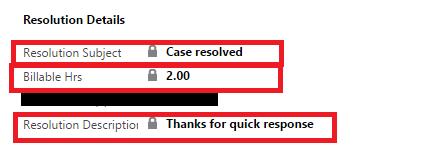
I then updated this information on 3 custom fields on case form. The output of the solution on case form is as shown below image:


Below is the code snippet of the logic::

Plugin Step Details:
Message                :    Create
Primary Entity      :    IncidentResolution
Registered on        :    Post event

////////////////////////////////////////////////////////////////////////////////////////////////////////////////////////////////////////////////////////////////////////////////////////////////////////
public class TrackTimeonCase : IPlugin
    {
        public void Execute(IServiceProvider serviceProvider)
        {
            #region Setup
            IPluginExecutionContext context = (IPluginExecutionContext)serviceProvider.GetService(typeof(IPluginExecutionContext));
            IOrganizationService service = ((IOrganizationServiceFactory)serviceProvider.GetService(typeof(IOrganizationServiceFactory))).CreateOrganizationService(new Guid?(context.UserId));
            ITracingService tracing = (ITracingService)serviceProvider.GetService(typeof(ITracingService));
            #endregion
            tracing.Trace("0.0");
            Entity targetCase = new Entity("incident");
            if ((context.InputParameters.Contains("Target")) && (context.InputParameters["Target"] is Entity) & context.Depth < 3)
            {
                    Entity entity = (Entity)context.InputParameters["Target"];
                    if (entity.LogicalName != "incidentresolution")
                        return;
                    try
                    {
                        if (entity.Contains("incidentid"))
                        {
                                targetCase.Id = ((EntityReference)entity["incidentid"]).Id;
                                Entity ResolveCase = service.Retrieve("incident", targetCase.Id, new ColumnSet("new_billablemintotal"));
                                int timespent = entity.Contains("timespent") ? entity.GetAttributeValue<int>("timespent") : 0;
                                targetCase["new_resolutiondescription"] = entity.Contains("description") ? (entity["description"] != null ? entity["description"].ToString() : string.Empty) : string.Empty;
                                targetCase["new_resolutionsubject"] = entity.Contains("subject") ? entity["subject"].ToString() : string.Empty;
                                if (ResolveCase.Contains("new_billablemintotal"))
                                {
                                  timespent = timespent + ResolveCase.GetAttributeValue<int>("new_billablemintotal");
                                }

                                    targetCase["new_billablemintotal"] = timespent;
                                    targetCase["new_billablehrs"] = ((decimal)timespent / 60);
                                    service.Update(targetCase);
                           
                        }
                    }
                    catch (Exception ex)
                    {
                        throw new InvalidPluginExecutionException(ex.Message);
                    }
                }

            }
        }

////////////////////////////////////////////////////////////////////////////////////////////////////////////////////////////////////////////////////////////////////////////////////////////////////////

Hope this was helpful...!!!

Saturday, 5 November 2016

How to write data to an excel sheet using asp.net C# code

How to write data to an excel sheet using asp.net C# code


In our last post, we discussed how we can read the data from excel using c# code.

In this post we will discuss how one can create an excel workbook and write data  in it using ASP.Net C# code.

Let's say we want to write below data to an excel workbook named StudentDetails:

Name                       Age
Tony                        25
Robert                     34
Harry                      18
Tom                        21

Below is the step by step procedure to do the same:

Step 1: Create a basic .Net console application in Visual Studio.

Step 2: In the solution explorer in right hand side,right click on reference and click add reference:


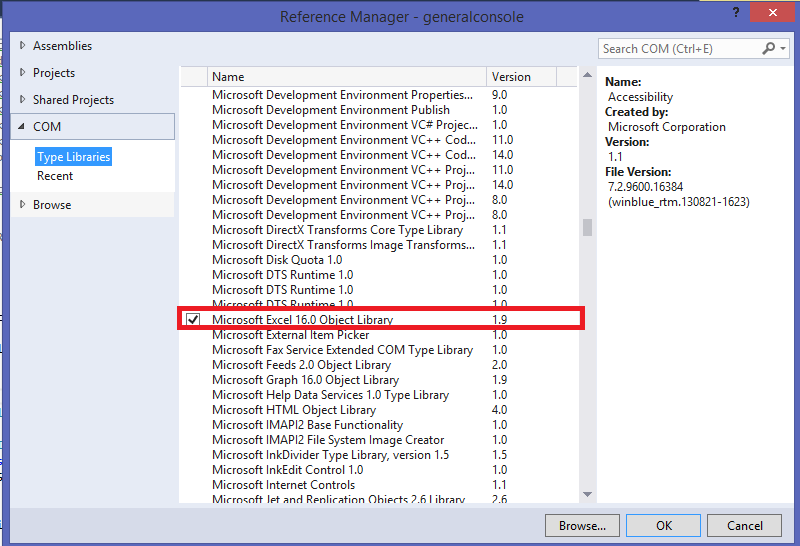
Step 3: Select "Microsoft Excel 16.0 Object Library" and click on add:


Step 4: Include "using Excel = Microsoft.Office.Interop.Excel;" :


Step 5:  Add below function in you code to read the excel sheet:

//////////////////////////////////////////////////////////////////////////////////////////////////////////////////////////////////////////////////////////////////////////////////////////////
public static void WriteExcel()
        {
            Excel.Application xlApp = new Microsoft.Office.Interop.Excel.Application();
            if (xlApp != null)
            {
                Excel.Workbook excelWorkbook;
                Excel.Worksheet excelSheet;
                object misValue = System.Reflection.Missing.Value;
                excelWorkbook = xlApp.Workbooks.Add(misValue);
                excelSheet = (Excel.Worksheet)excelWorkbook.Worksheets.get_Item(1);

                excelSheet.Cells[1, 1] = "Name";
                excelSheet.Cells[1, 2] = "Age";
                excelSheet.Cells[2, 1] = "Tony";
                excelSheet.Cells[2, 2] = 25;
                excelSheet.Cells[3, 1] = "Robert";
                excelSheet.Cells[3, 2] = 34;
                excelSheet.Cells[4, 1] = "Harry";
                excelSheet.Cells[4, 2] = 18;
                excelSheet.Cells[5, 1] = "Tom";
                excelSheet.Cells[5, 2] = 21;

                excelWorkbook.SaveAs("d:\\StudentsDetails.xls", Excel.XlFileFormat.xlWorkbookNormal, misValue, misValue, misValue, misValue, Excel.XlSaveAsAccessMode.xlExclusive, misValue, misValue, misValue, misValue, misValue);
                excelWorkbook.Close(true, misValue, misValue);
                xlApp.Quit();
            }

        }


////////////////////////////////////////////////////////////////////////////////////////////////////////////////////////////////////////////////////////////////////////////   

As the above code executes, excel sheet named StudentsDeatails get created in d drive having data as shown below:


Now you can manipulate the above code to write down your data into excel sheet.

Hope it was helpful.

Friday, 4 November 2016

How to read data from an excel sheet using asp.net C# code

How to read data from an excel sheet using asp.net C# code


Sometimes one needs to access data from excel sheet using code to perform some action using that data.

Taking dynamics crm into consideration one scenario may be that where we have a list of records (unique id or GUID of records) which we have to update from back-end using asp.net C# code.

Here we have step by step code to read data from excel sheet and free to do any action on that data in other system:

Ex: We want to read an excel sheet located at "d:\testexcel":
  Our testexcel have below data in it:

Through our demo application we'll read the data in this sheet and print it on console:

Step 1: Create a basic .Net console application in Visual Studio.

Step 2: In the solution explorer in right hand side,right click on reference and click add reference:


Step 3: Select "Microsoft Office 16.0 Object Library" and click on add:


Step 4: Include "using Excel = Microsoft.Office.Interop.Excel;" :


Step 5:  Add below function in you code to read the excel sheet:

//////////////////////////////////////////////////////////////////////////////////////////////////////////////////////////////////////////////////////////////////////////////////////////////
 public static void ReadExcel()
        {

            Excel.Application xlApp;
            Excel.Workbook xlWorkBook;
            Excel.Worksheet xlWorkSheet;
            Excel.Range range;

            string str;
            int RowCount;
            int ColumnCount;
            int TotalRow = 0;
            int TotalColumn = 0;

            xlApp = new Excel.Application();
            xlWorkBook = xlApp.Workbooks.Open(@"d:\testexcel", 0, true, 5, "", "", true, Microsoft.Office.Interop.Excel.XlPlatform.xlWindows, "\t", false, false, 0, true, 1, 0);
            xlWorkSheet = (Excel.Worksheet)xlWorkBook.Worksheets.get_Item(1);

            range = xlWorkSheet.UsedRange;
            TotalRow = range.Rows.Count;
            TotalColumn = range.Columns.Count;


            for (RowCount = 1; RowCount <= TotalRow; RowCount++)
            {
                for (ColumnCount = 1; ColumnCount <= TotalColumn; ColumnCount++)
                {
                    str = (string)(range.Cells[RowCount, ColumnCount] as Excel.Range).Value2;
                    Console.Write(str);
                    Console.Write("\t");
                }

                Console.Write("\n");
            }

            xlWorkBook.Close(true, null, null);
            xlApp.Quit();

        }

//////////////////////////////////////////////////////////////////////////////////////////////////////////////////////////////////////////////////////////////////////////////////////////////


Below will be the output of above code on console screen:


Now you can manipulate the above code to use the data red from excel as per your requirement.

Hope it was helpful.